
Automate Your Bug Reports: Harness Google Forms, GitHub, and Trello for Seamless Workflow!


In this article, we’ll show you how to automate your bug reporting process using Google Forms, GitHub, and Trello. We’ll cover two different options, so you can choose the one that best fits your workflow.
Google Forms which will automatically make a issue on your Github Repository.
Google Forms which will automatically make a Github issue and Trello card.
To make everything clear, we’ll include plenty of images to guide you through each step of the process.
Video Tutorial
Let’s Start
To follow along, you’ll need accounts with Make.com, Google, GitHub, and Trello. We’ll be using Make.com’s free plan, so you can set this up at no cost.
If you don’t have an account for Make.com then please use this link if you would like to support me. It won’t cost you anything extra.
Google Forms and Github
Ensure you have a Google Form and a GitHub repository ready. Your Google Form should include two questions: one for the title and one for the description. Also, link your Google Form to a Google Sheet, which can be done in the ‘Responses’ tab.
Google Forms

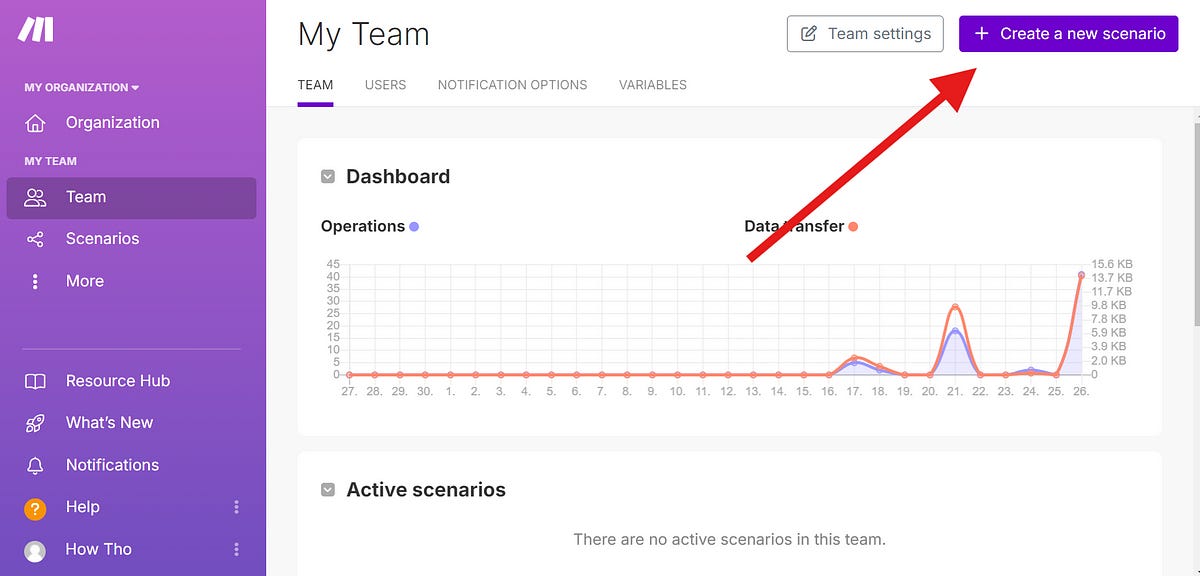
To start let’s go to Make.com and click on Create a new Scenario in the top right corner.
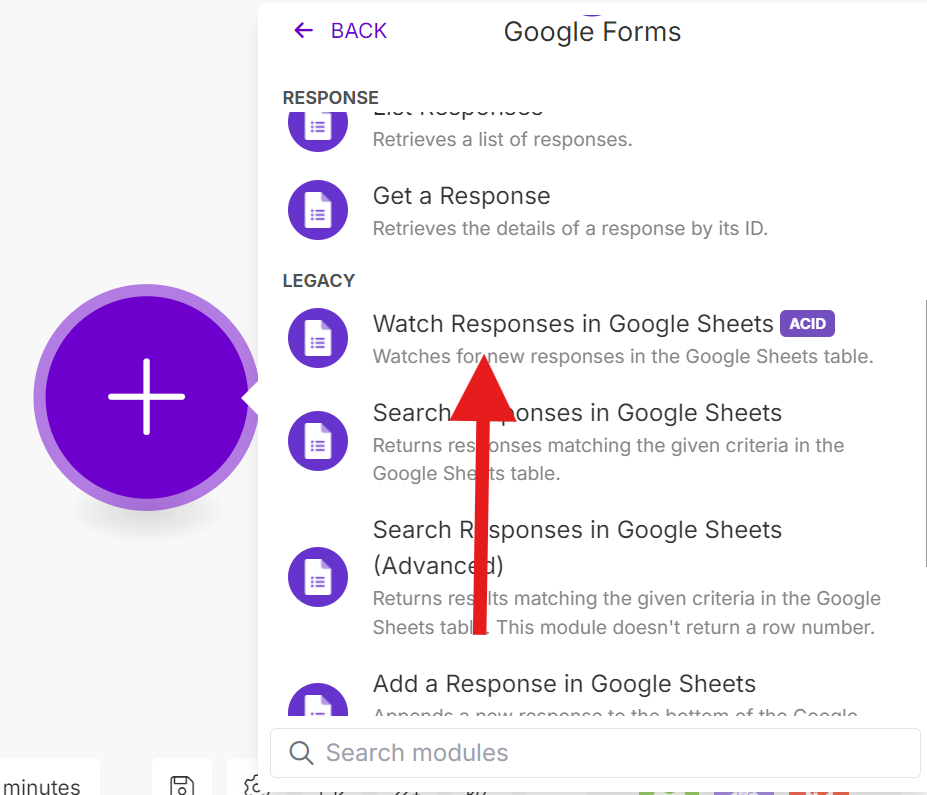
Search for Google Forms, click on it then scroll down and choose “Watch Responses in Google Sheets” under the Legacy tab.
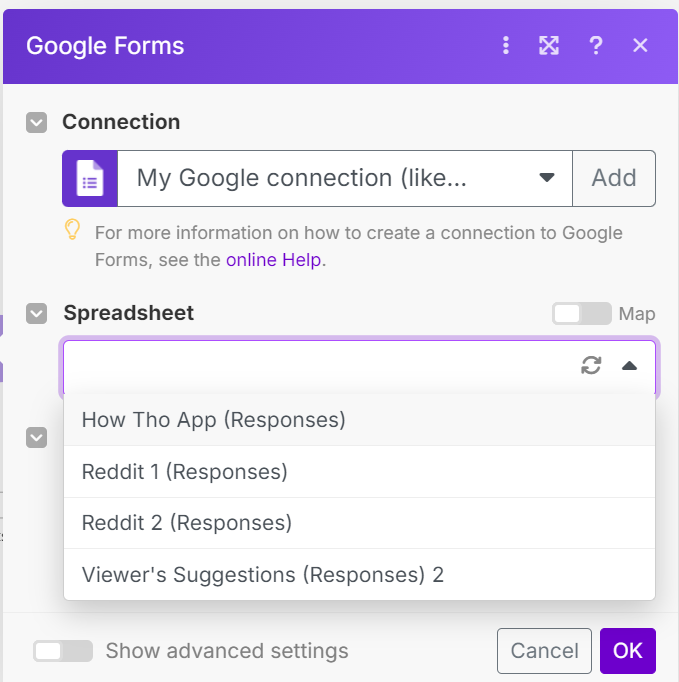
You will be prompted to login to your Google Account if you have not already. Then you will need to select the Google Sheet that is linked with your Google Form.
Select the “Sheet” where your data is stored. If you only have one, it will likely be named “Form Responses 1”.
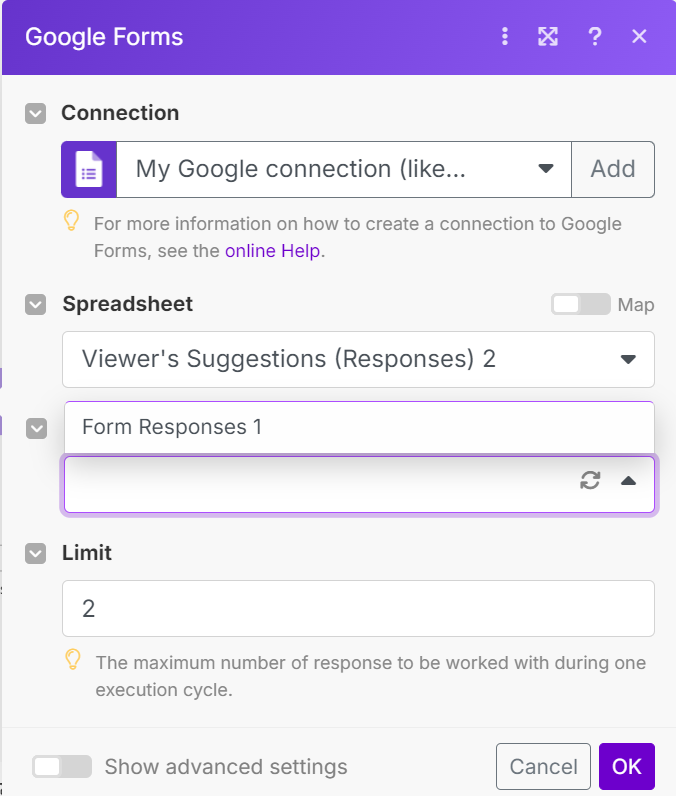
I recommend adjusting the limit, which controls how many responses Make will process each time it runs. For example, if 10 new responses are received since the last run and the limit is set to 2, 8 responses will remain unprocessed. Set the limit to a number that fits your needs, then click “OK”.
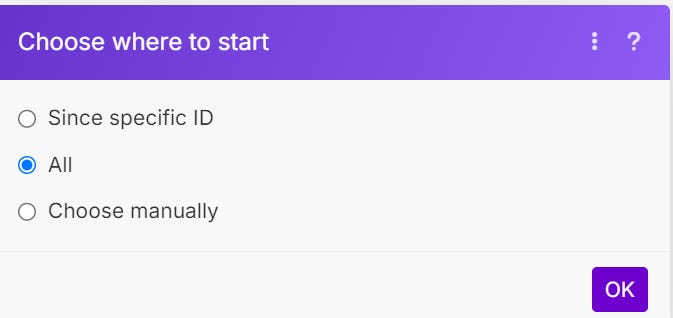
Next select “All” and click “OK”.
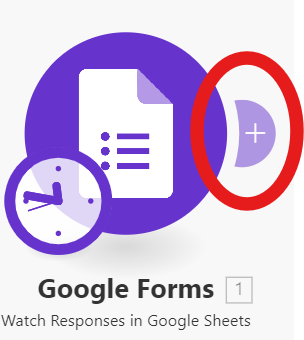
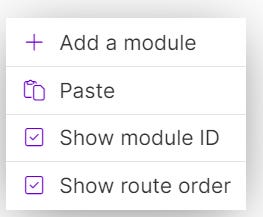
Now click on the “+” sign on the Google Forms module or right click anywhere and press add new module.
Github
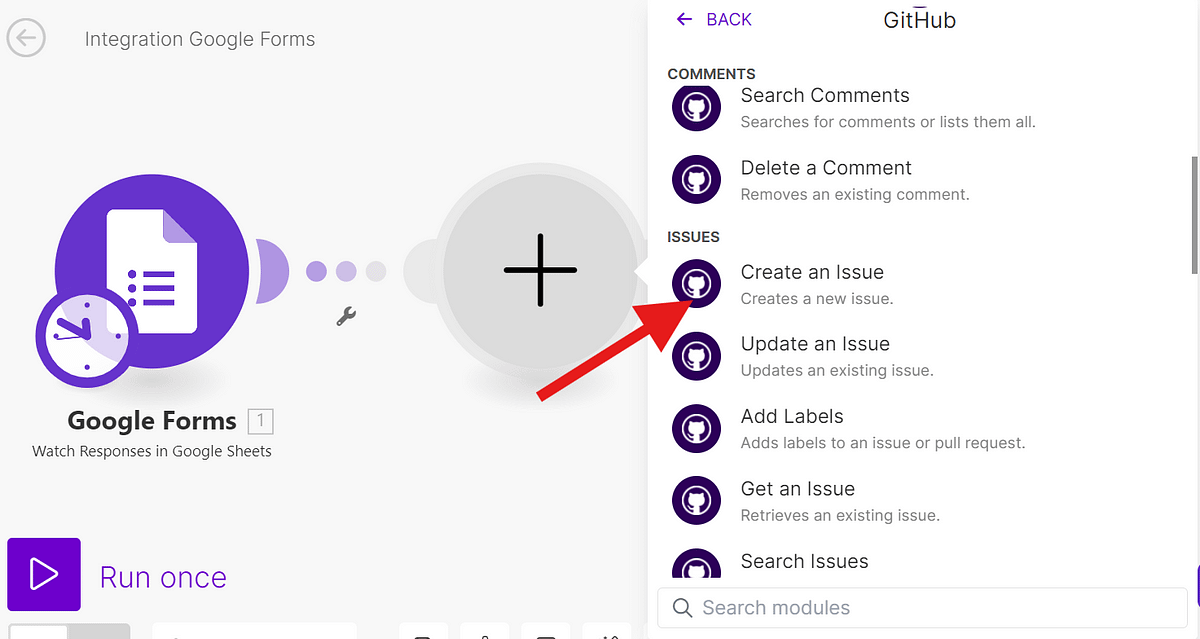
Search for “Github”, click on it and scroll down till you see “Create an Issue” under the “Issues” tab and click on it.
First, log in to your Github Account, then enter the “Title” and “Description”. You’ll need to specify the exact cells for these fields in your Google Sheet, as both Title and Description are required.
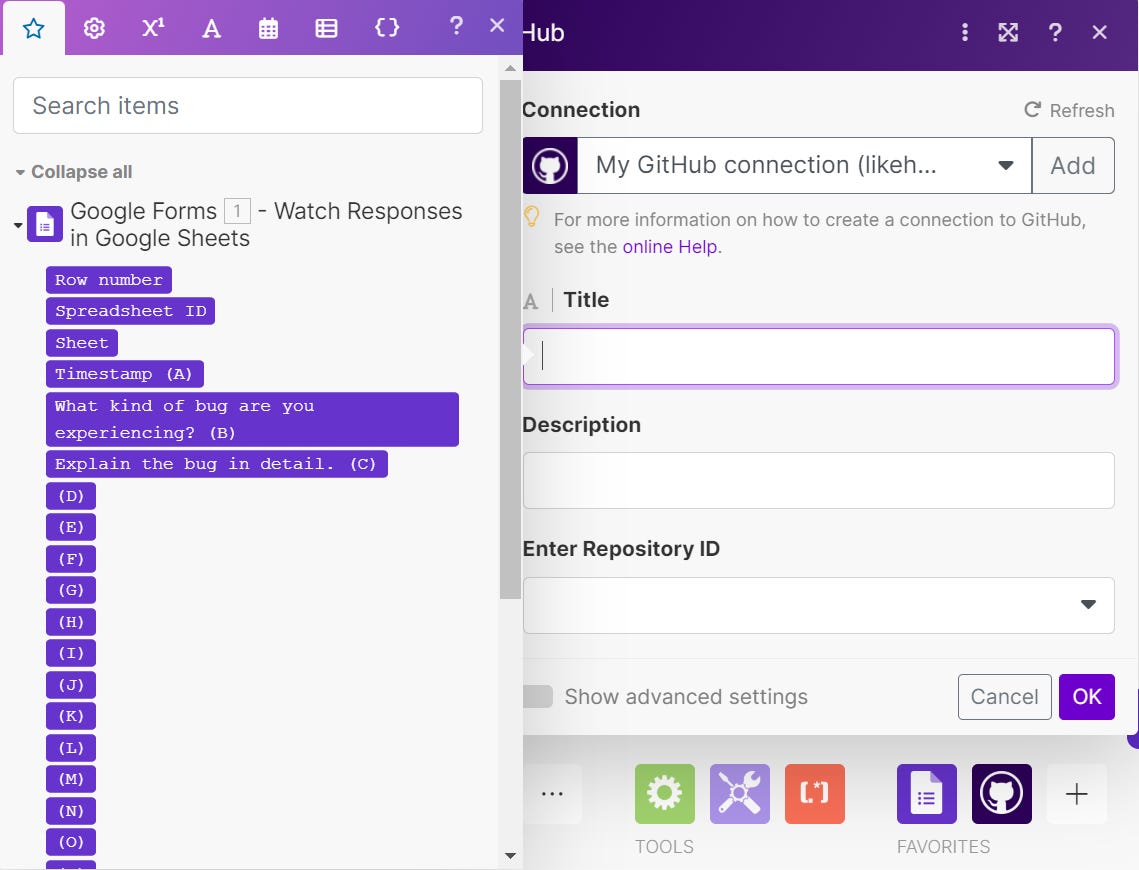
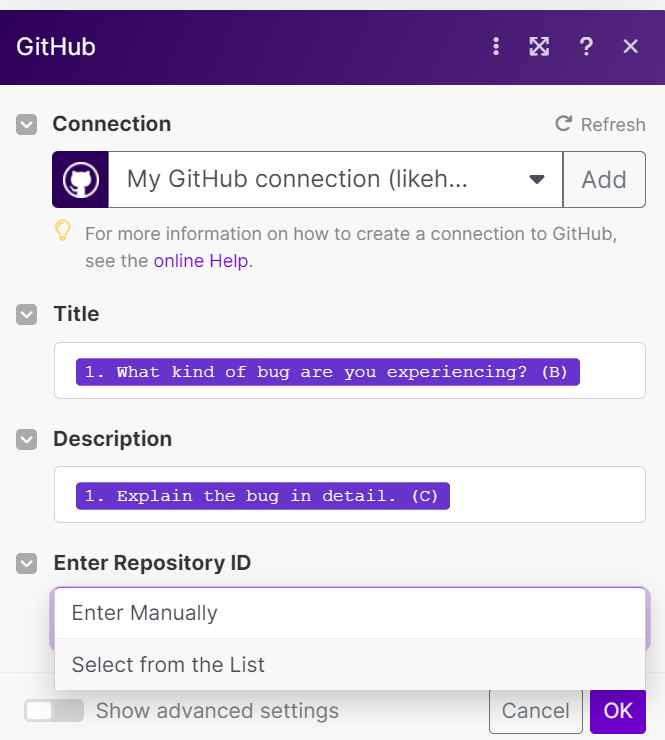
For Enter Repository ID, click on ‘“Select from List” to view all your repositories. Then, choose the one where you want to add the issues.
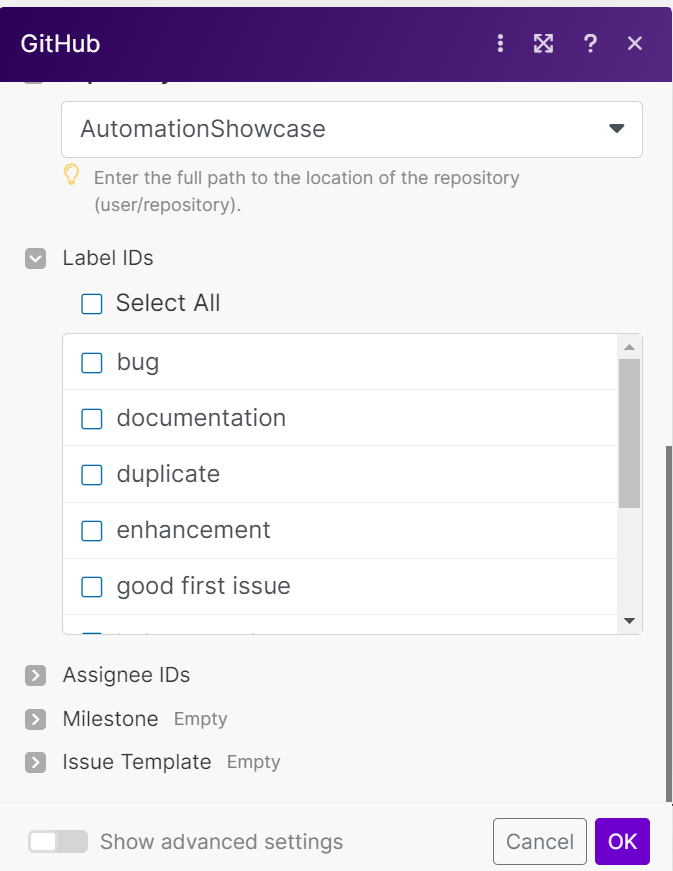
The remaining fields are optional. Use “Label IDs” to mark the issue as a bug, and “Assignee IDs” to automatically assign it to a team member. “Milestones” and “Issue Template” are straightforward (I only used Label IDs to mark it as a bug). When you’re finished, click “OK”.
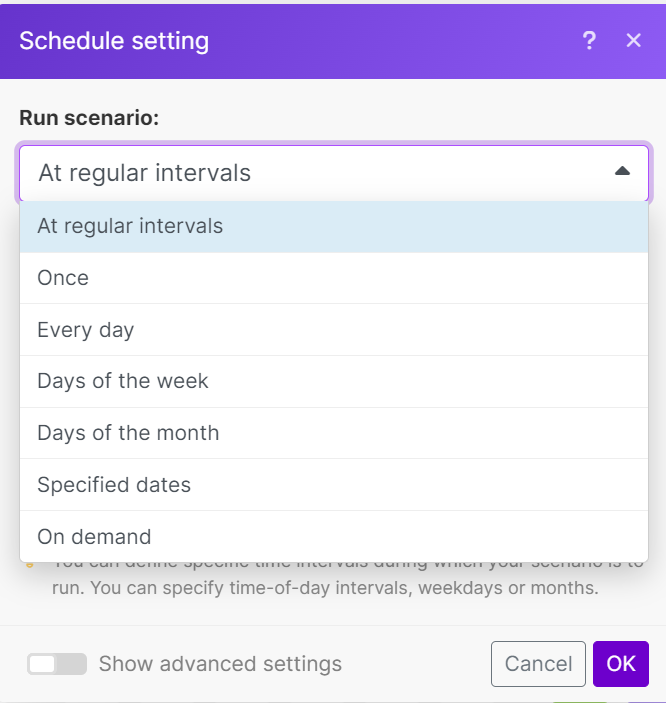
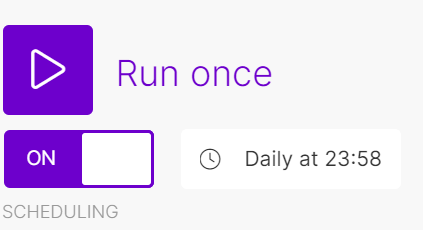
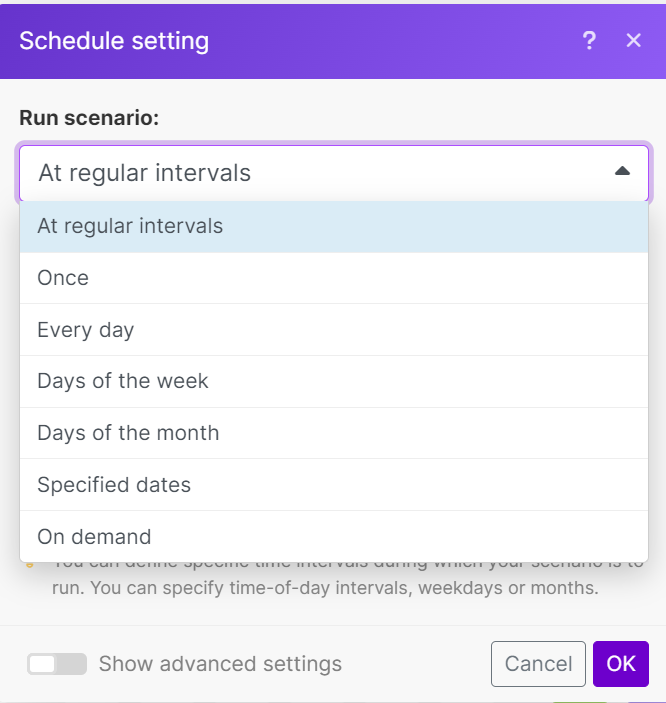
The final step is to adjust the schedule to fit your needs. By default, it runs every 15 minutes, but this frequency isn’t recommended on the free plan, as it could exceed your usage limits. Change it to fit your needs.
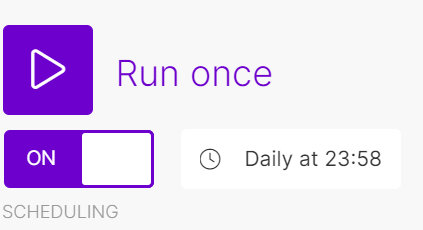
Make sure to turn it on.
Google Forms, Github and Trello
On to the second part where we use the Google Forms responses to make Github issues and Trello cards. For this we will make another scenario.
Google Forms
The Google Forms part will be the same until this part:
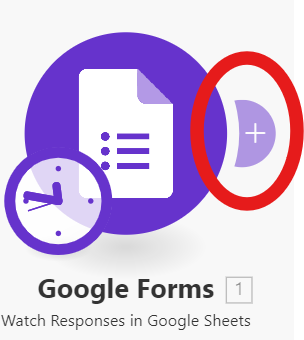
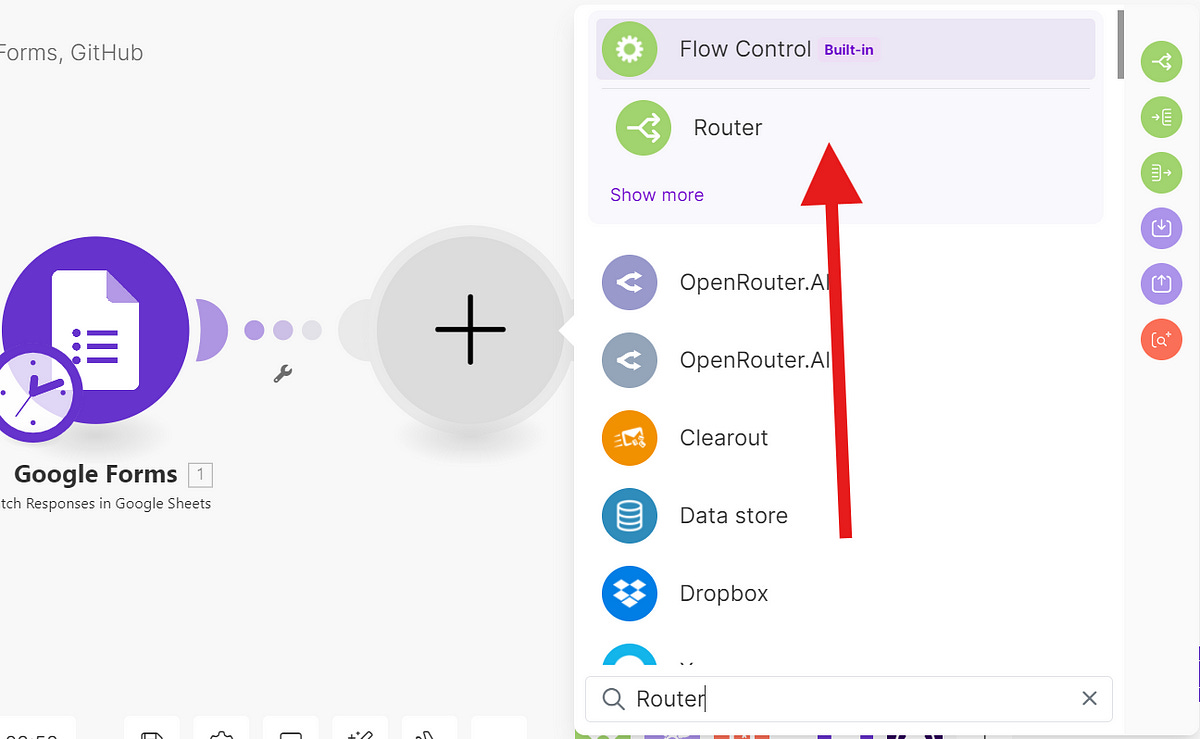
In the previous version, we added a new module for GitHub. This time, we’ll be adding the “Router” module instead. Search for “Router” and click on it to proceed.
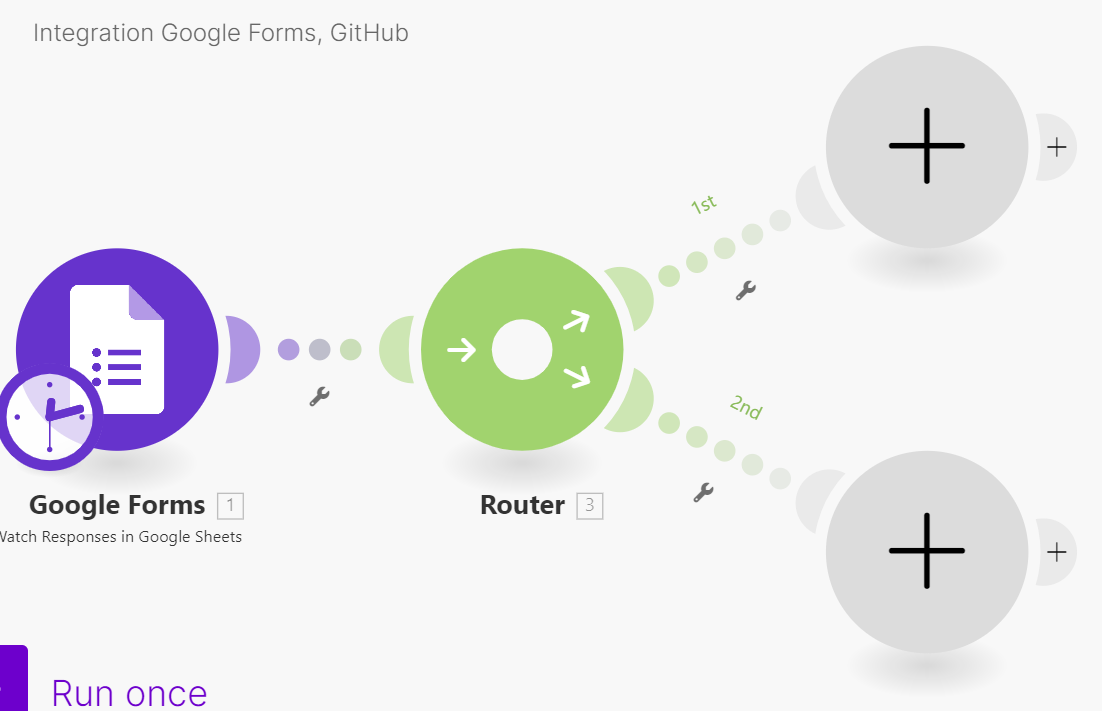
This will add two new module sections. The Router directs data from a single input (our Google Form response) to multiple outputs (GitHub and Trello).
Github
Click on the top module and follow along with the “Github” part that we wrote earlier on in this article.
Trello
Click on the bottom empty module and search for Trello, then scroll down and click on “Create a Card”.
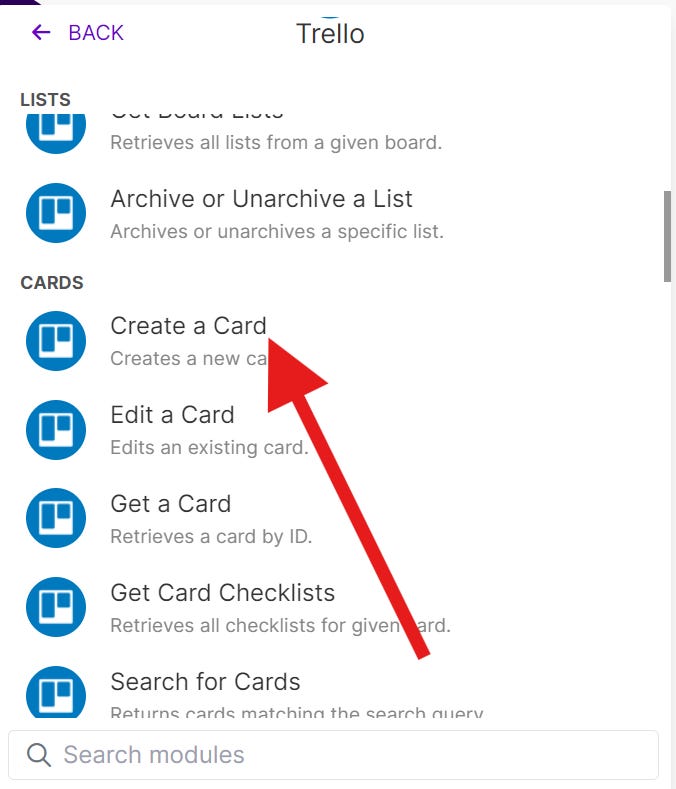
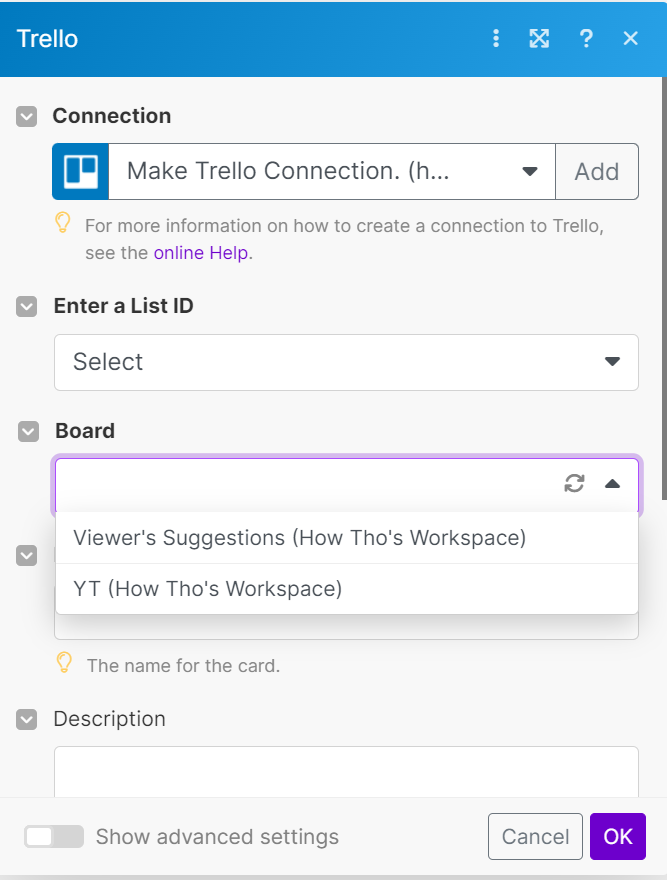
Log in to your Trello account. For “Enter a List ID,” select the “Select” option. This will display all your Trello boards. Choose the board you want to use from the list.
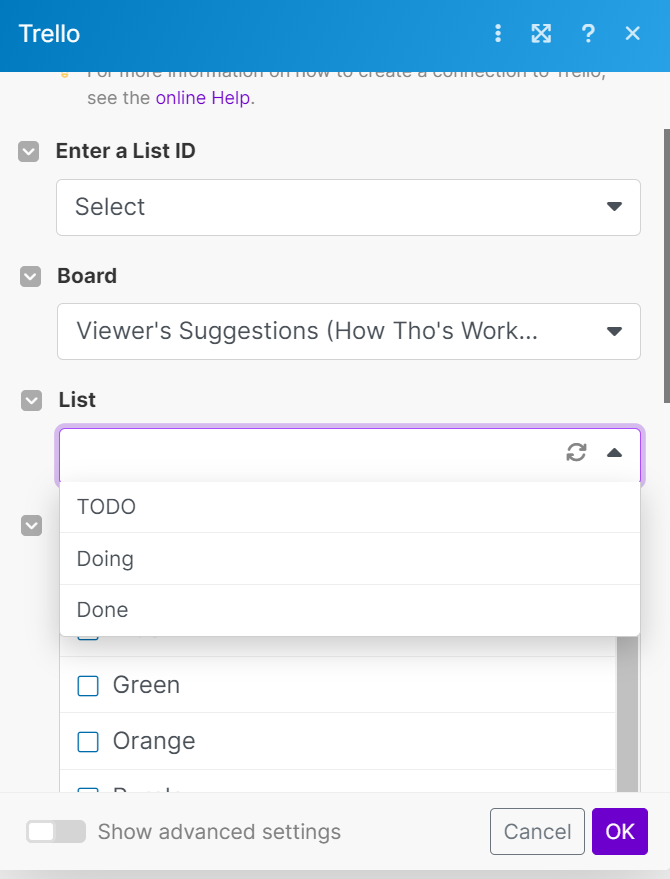
Choose the list where the new card should be created under the “List” tab.
Next, specify the “Name” of the card and indicate which cell it should be taken from (you can skip the description).
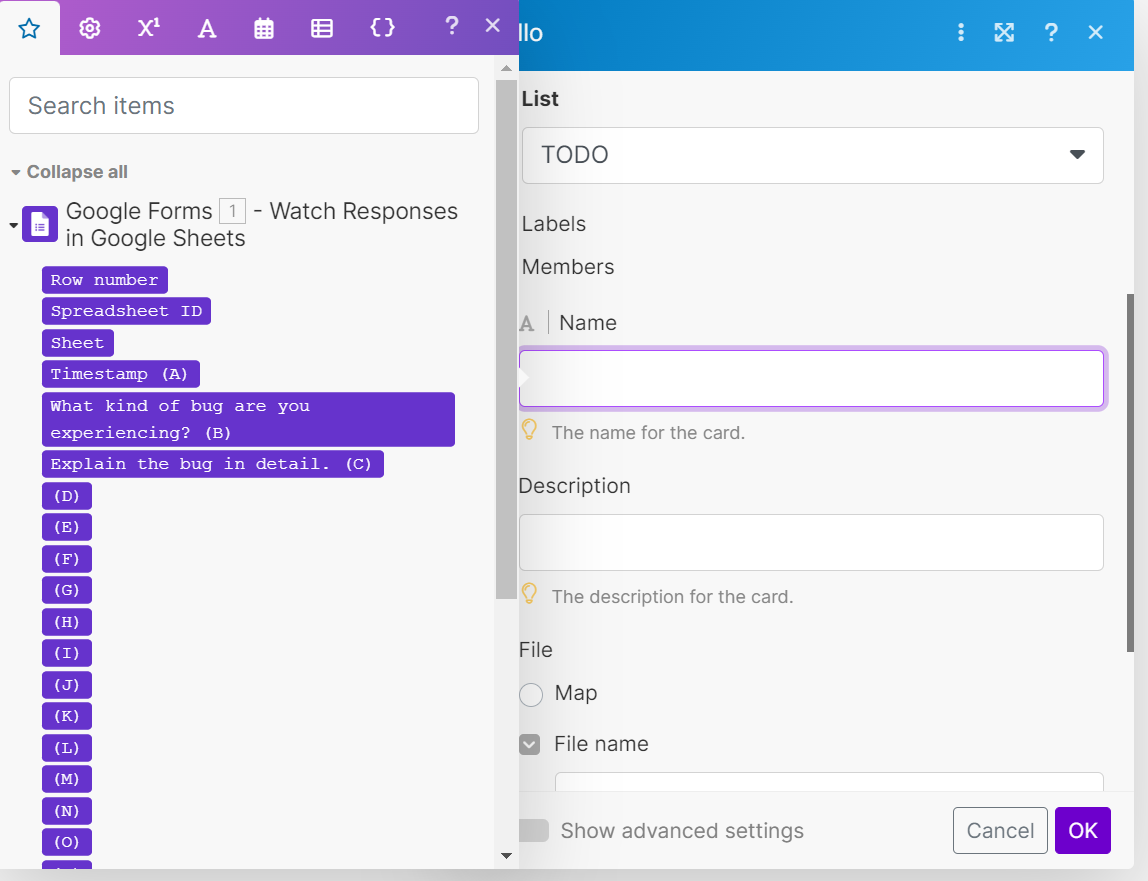
Select “Map” under file and click on “OK.
Last part is to change the schedule to one that fits your plan. Currently it would run every 15 minutes but this is not recommended if you are on the free plan(because you will go over it).
Make to turn the scenario on.
And that’s it! Which process should we automate next? Share your ideas in the comments!
Disclaimer
I’ll earn a small commission when you click the link for Make.com and sign up, with no additional cost for you.