
Automate RSS Feed to Airtable


How to Automatically Add RSS Feed Items to Airtable
If you’re looking for an easy way to automatically add RSS feed items to an Airtable table, you’ve come to the right place. In this tutorial, we’ll walk you through the simple steps to automate this process using Make.com and Airtable, making it easy to keep your records updated without any manual work.
If you don’t have an account for Make.com then please use this link if you would like to support me. It won’t cost you anything extra.
If you’re a visual learner, watch this step-by-step YouTube video tutorial!
Step 1: Set Up Your RSS Feed(Optional)
If you already have an RSS feed, feel free to skip this step. Just make a note of how many items the feed fetches, as we’ll need this information later in the process.
First, you need to have an RSS feed url. In this step, I’ll be creating a custom RSS feed from ProductHunt. Just go to this site and when you are logged in press on “New Feed”. Click on RSS Builder and input your site, mine will be producthunt.com, then press “Load Website”.

Select the items that you want to be in your RSS feed, then click on “Generate”.
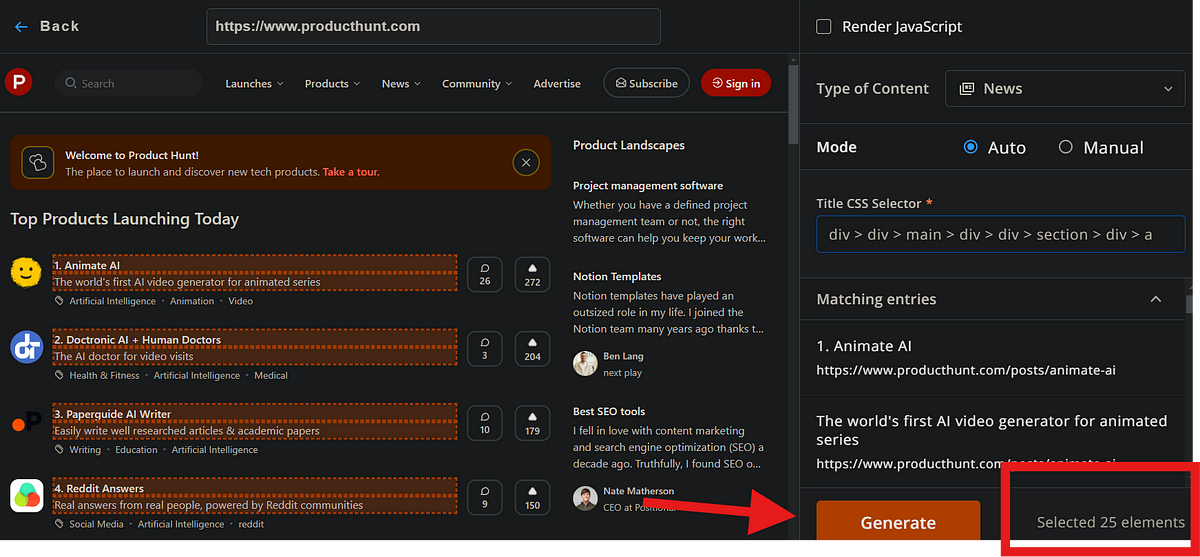
As you can see my feed will fetch 25 elements. Click on “save to my feeds” which will give you the url/link of the feed. Copy it.
Step 2: Prepare Airtable
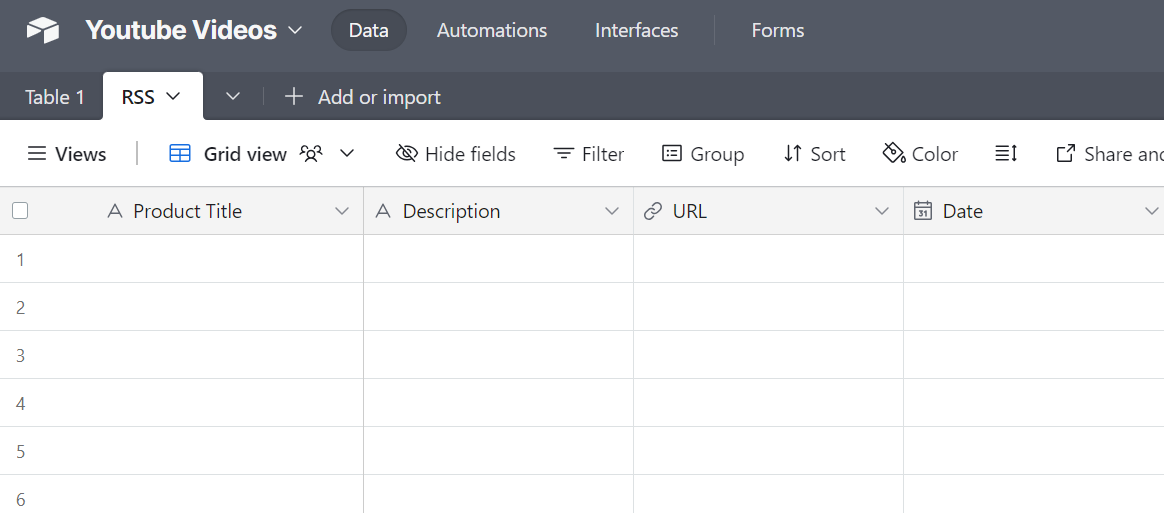
Before starting the automation, ensure that you have a table ready in Airtable to store the RSS feed data. This is my table called “RSS”.
Step 3: Create a Scenario in Make.com
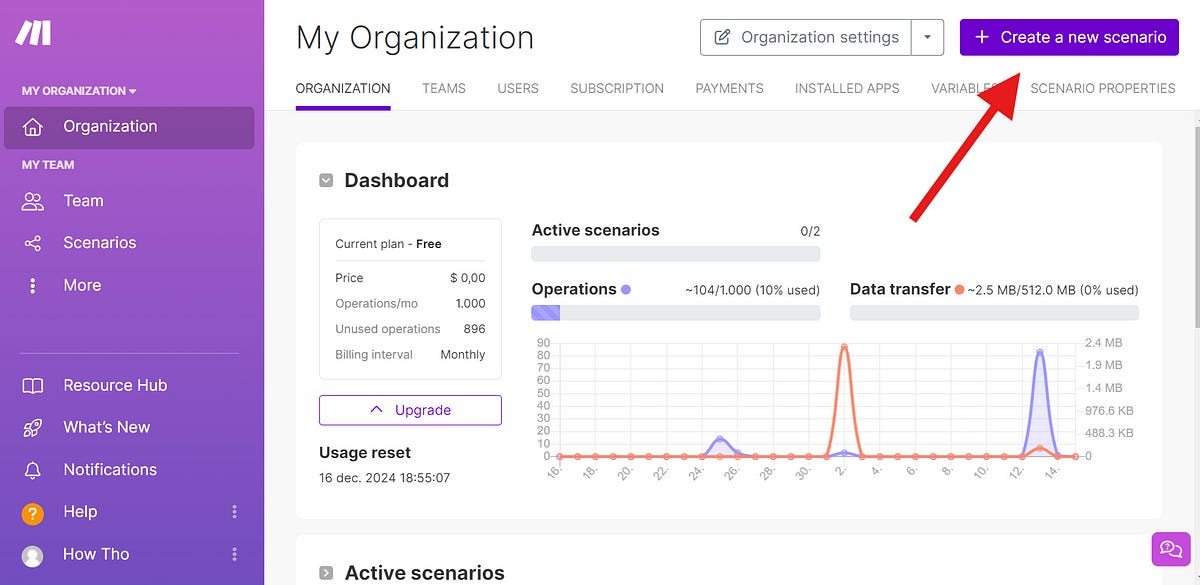
Go to Make.com and click Create a new scenario in the top-right corner of the dashboard.
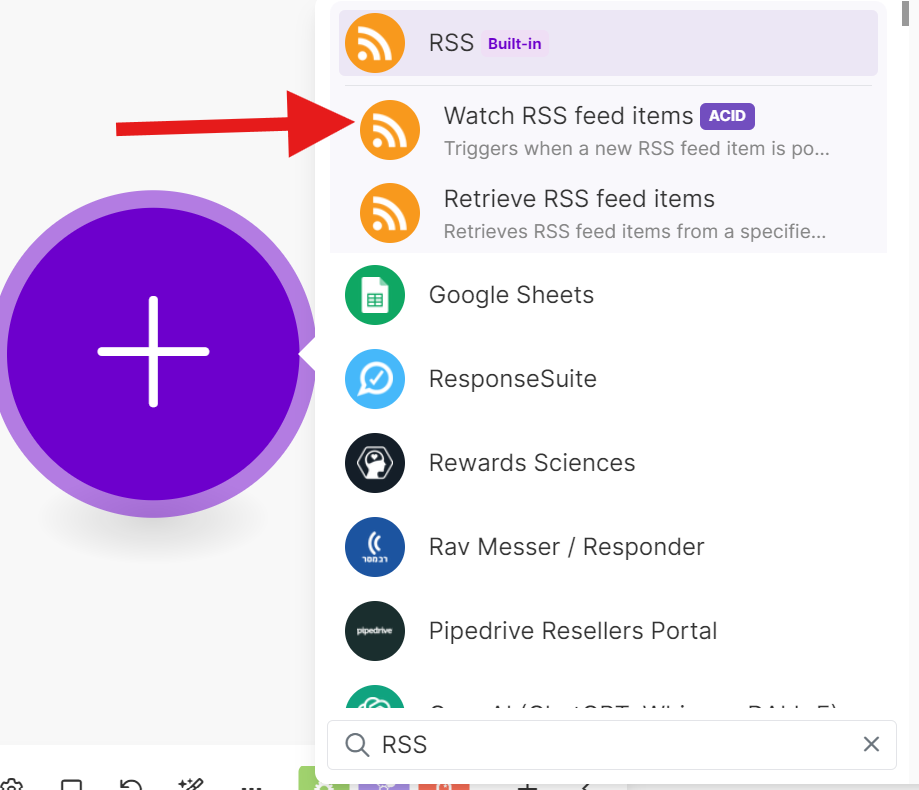
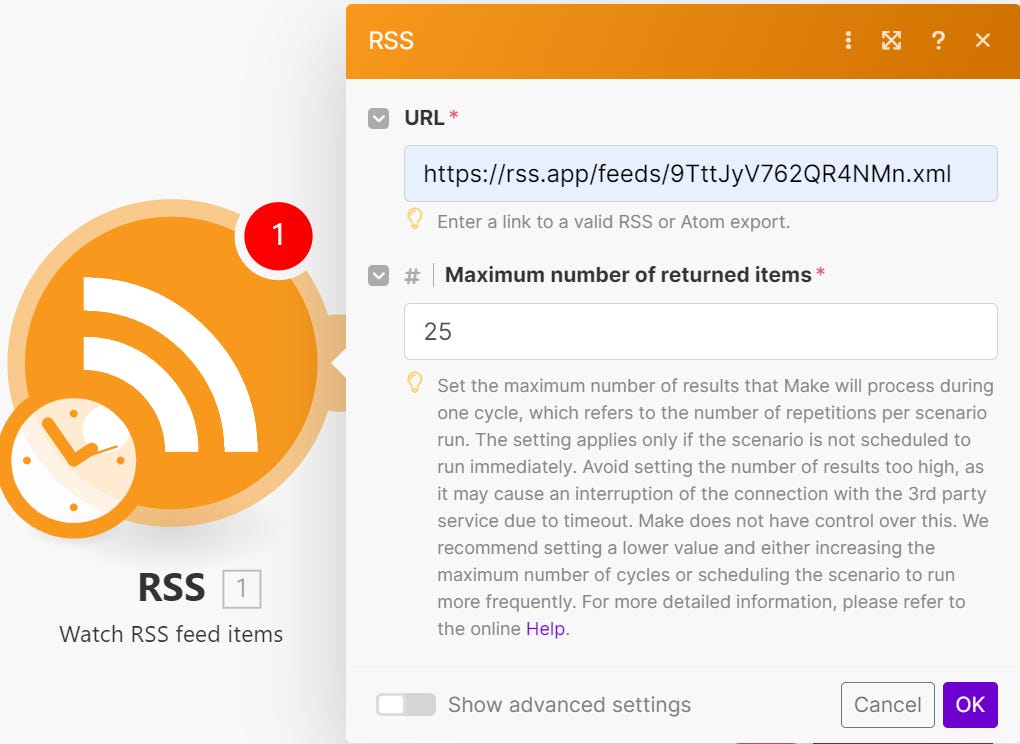
2. Search for RSS and click on the option titled Watch RSS Feed Items.
Paste the url you have copied under “URL”. Set the amount of RSS items that you previously noted. Click on “OK”.
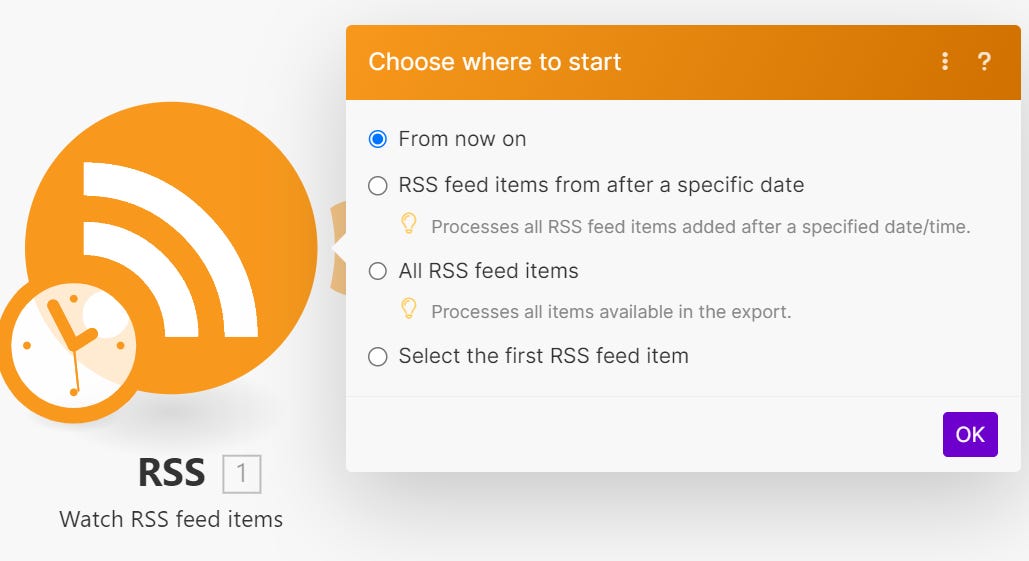
Keep “From Now On” selected and click on “OK”. This does mean it will NOT be adding the current RSS feed items. But every new item will be added.
Step 5: Add Airtable to Your Scenario
Click the plus sign to add another module.

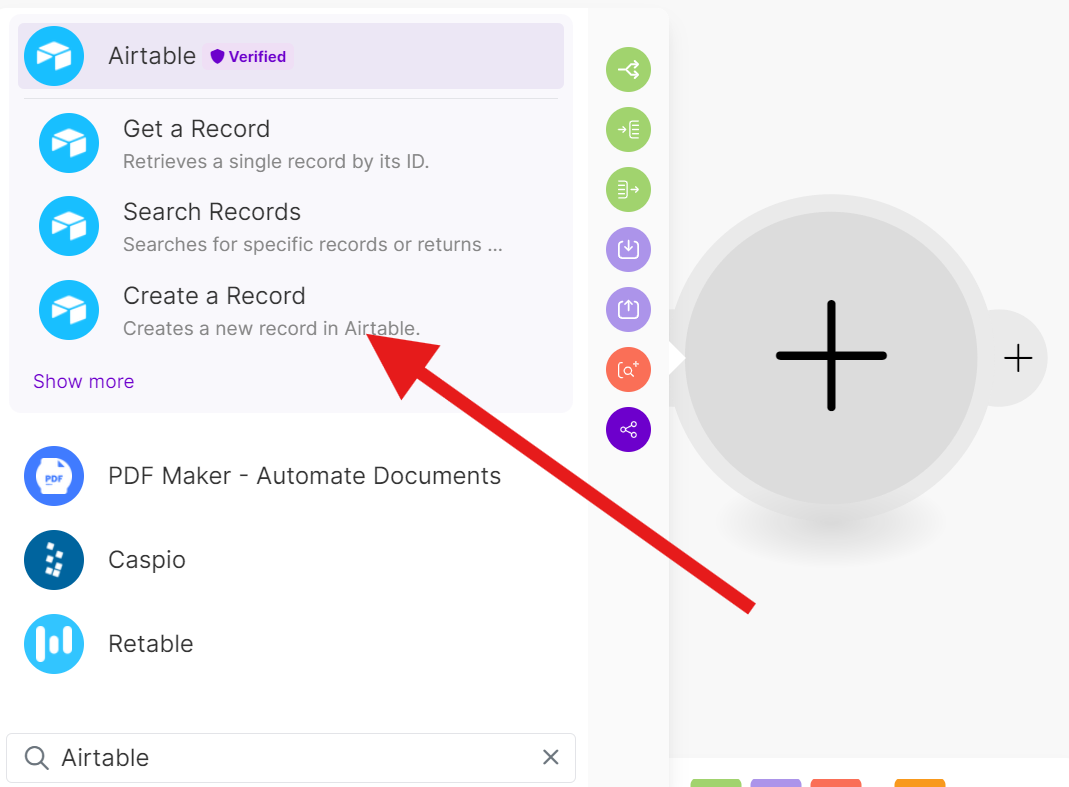
2. Search for Airtable and select the Create a record option.
3. You will be prompted to authorize Airtable. If you haven’t connected your Airtable account before, you’ll need to follow the authorization process. Click on Airtable oAuth and then on “Save”. This will give you a popup. Click on “Add Base”. In this select the base or workspace your prepared Airtable tablee is in. Then click on “Grant Access”.
4. Once you’ve connected Airtable, select the base and table where you want the RSS feed data to be added.
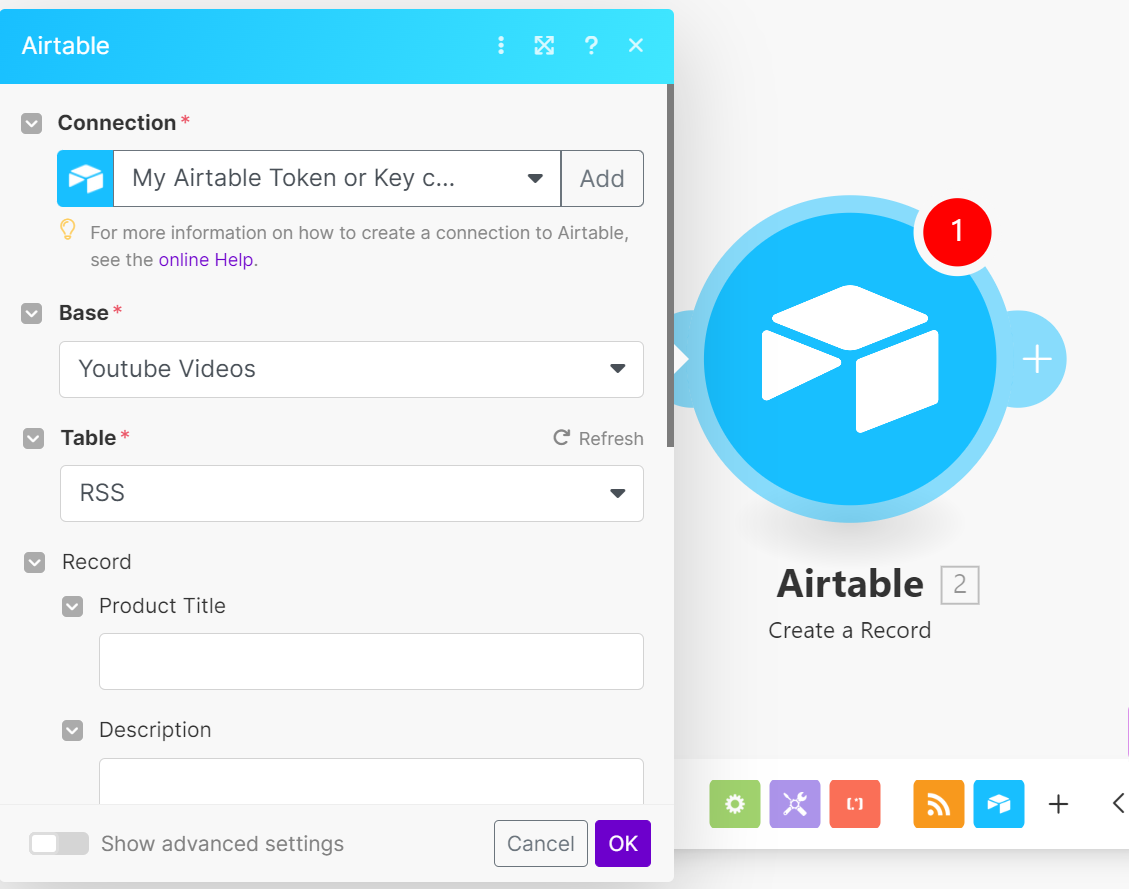
5. Map the values from the RSS feed to the corresponding columns in your Airtable table. This might differ depending on your table’s structure, but make sure to map all necessary fields.
For example, my table has four columns(Product Title, Description, URL and Date), which are automatically populated with the RSS feed data.
Step 6: Save and Automate
Once the values are mapped, click OK and save the scenario(CTRL+S). Set up the scenario’s schedule so that it runs automatically at regular intervals, even while you’re sleeping! Don’t forget to turn it on! Mine will run every 12 hours.

And we are done! What should our next article be about? Let us know in the comments!
Disclaimer
I’ll earn a small commission when you click the link for Make.com and Rss.app and sign up, with no additional cost for you