
"Automate Bug Reports for Free Using Google Forms and Trello: Step-by-Step Guide

In this article, we’ll guide you through automating the process of adding bug reports from Google Forms directly into Trello. To ensure clarity, we’ll include plenty of images to walk you through each step of the process.
To follow along you need the following accounts: Make.com, Google, and Trello. We are going to use Make.com’s free plan to do this completely with no cost.
If you don’t have an account for Make.com then please use this link if you would like to support me.
Video Version
This tutorial is also available in video format if you prefer that.
Let’s Start
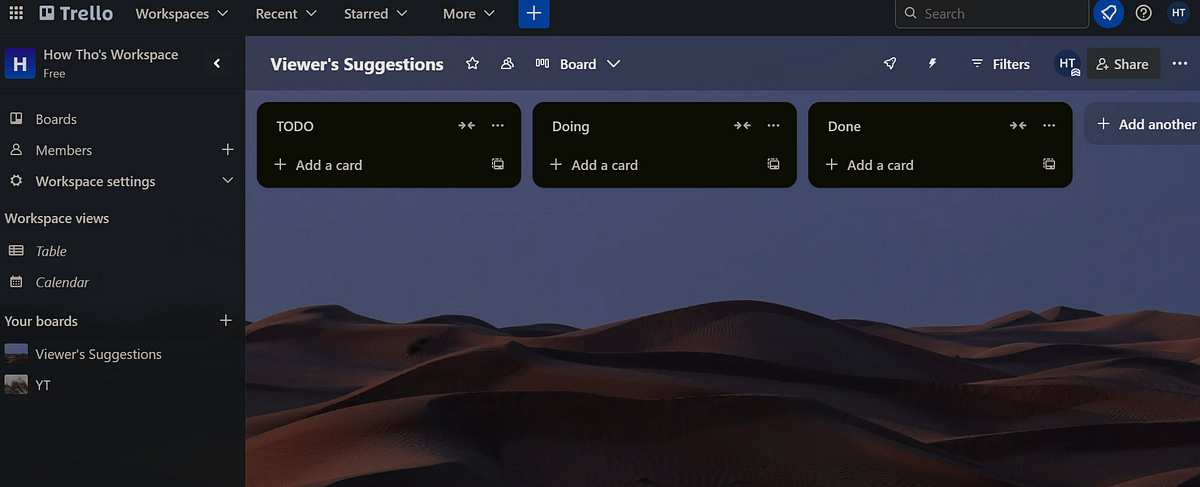
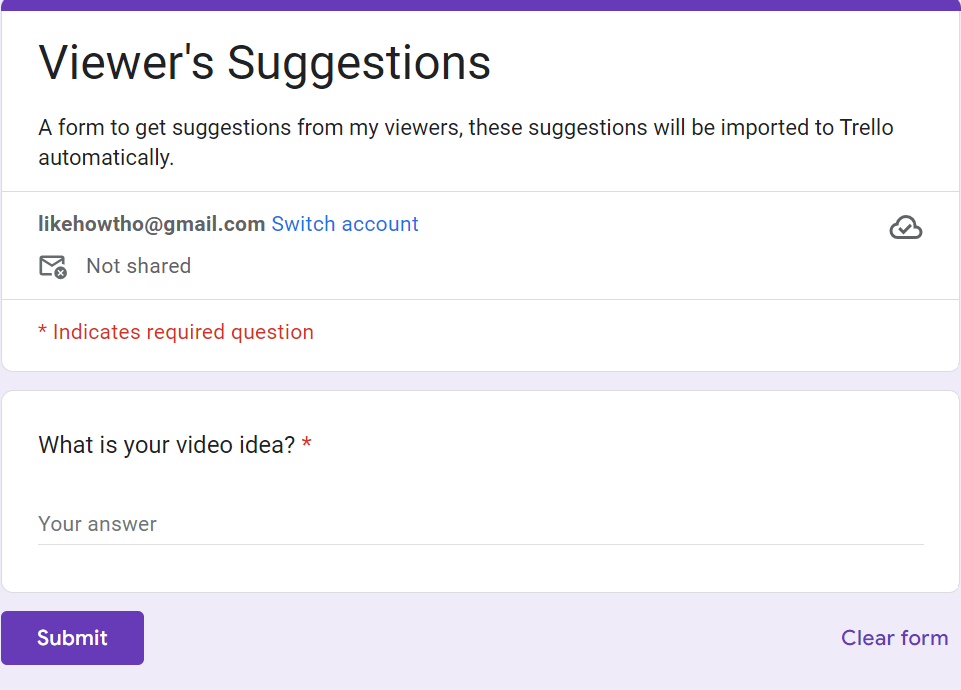
Ensure you have both a Trello board and a Google Form set up beforehand. Here are my examples, they are quite straightforward.
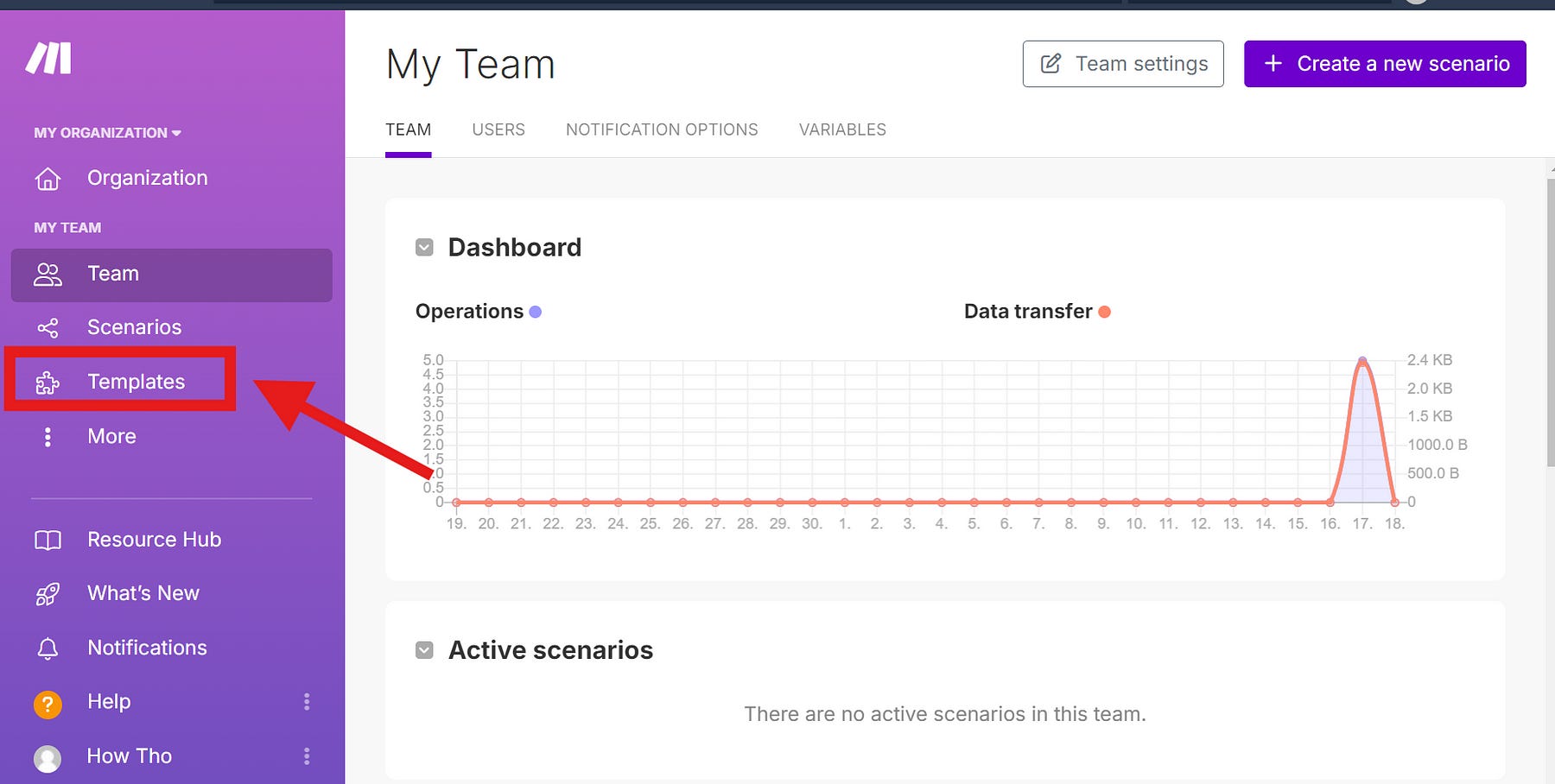
Go to your make.com account and click on templates.
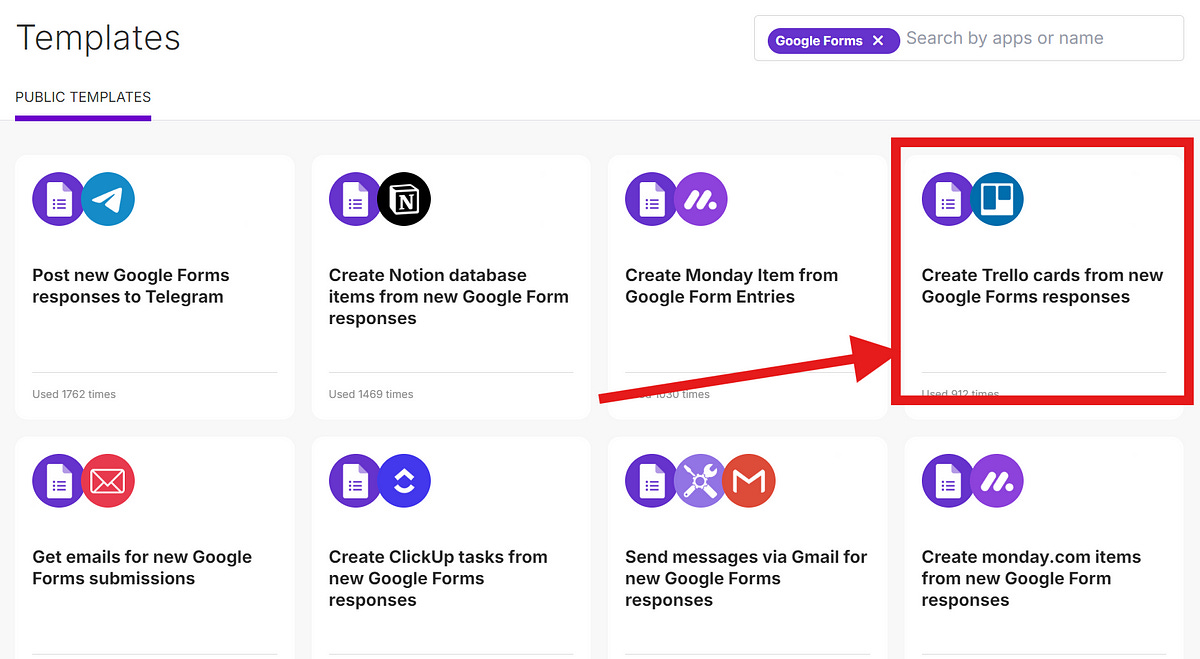
Now search for Google Forms and click on this scenario.
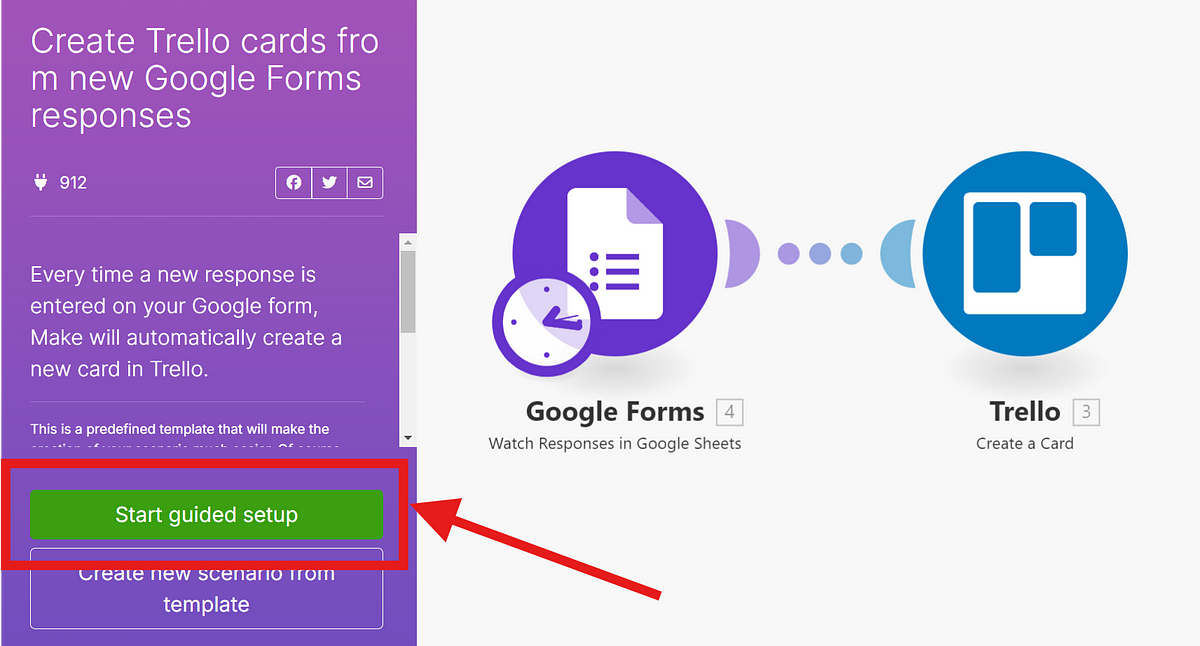
Make.com makes the process easier with a “Guided Setup”. Click on “Start Guided Setup”.
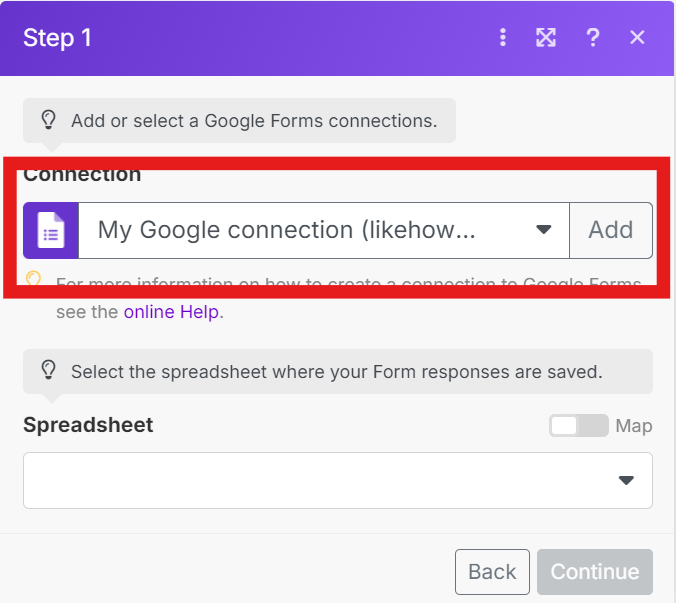
You will need to login to your Google account now, I have already done this.
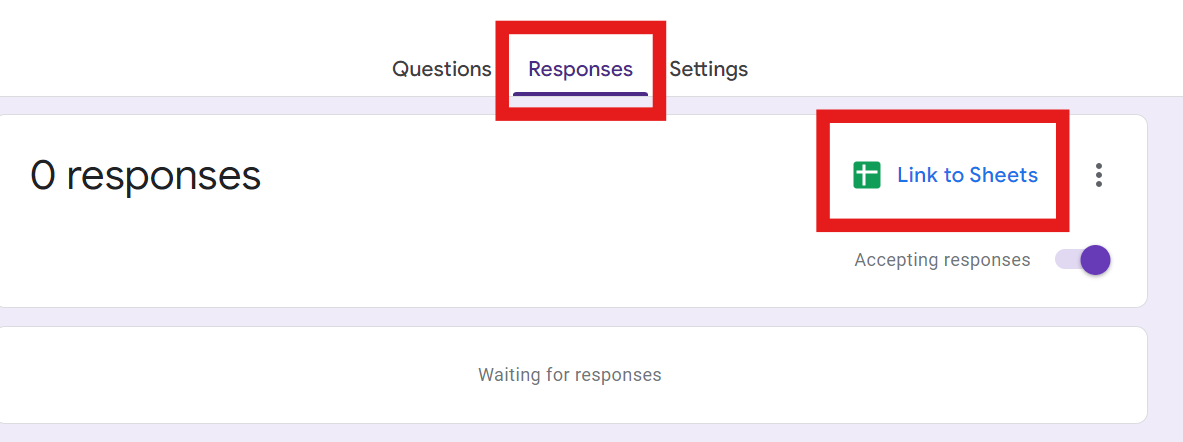
You will need to have enabled “Link to Sheets” on your Google Forms for the next step. You can do this on the “Responses” tab of your Google Form.
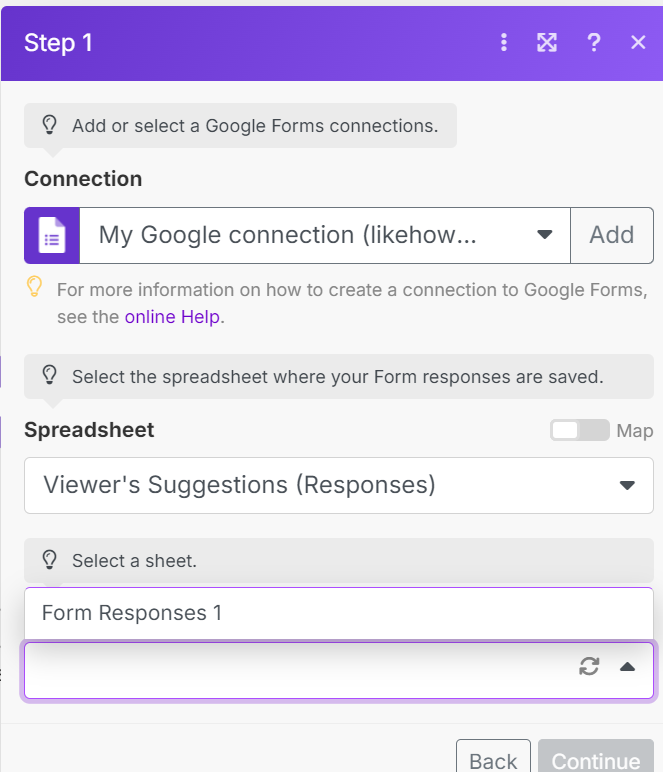
Now we need to link the sheet that is connected with your Google Form.
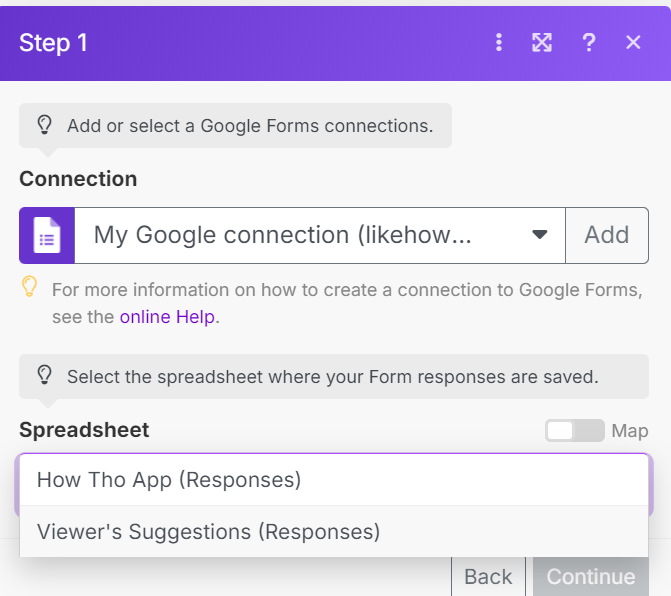
After this you need to choose which “Sheet” you want the get the data from. If you have multiple sheets, choose where the data you want is stored in.
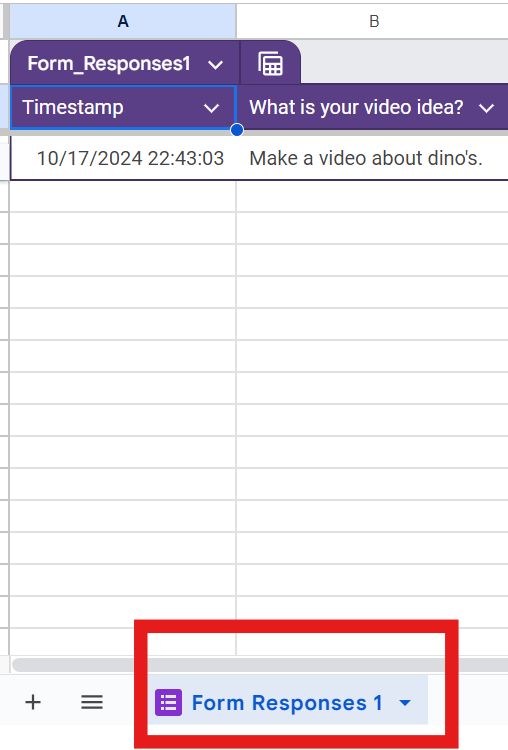
Here you can see I only have one “Sheet” titled “form Responses 1”.
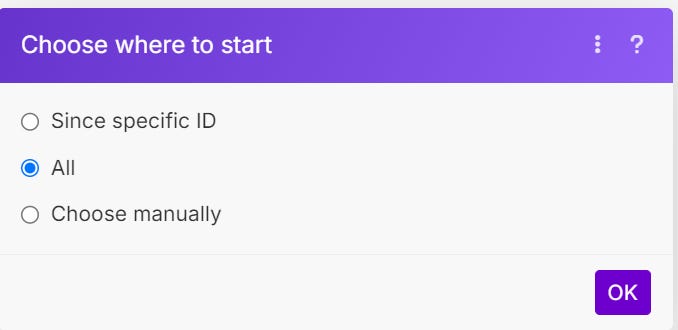
On the next screen select “all” and click “OK”.
Now we need to login to our Trello account, which I already have.
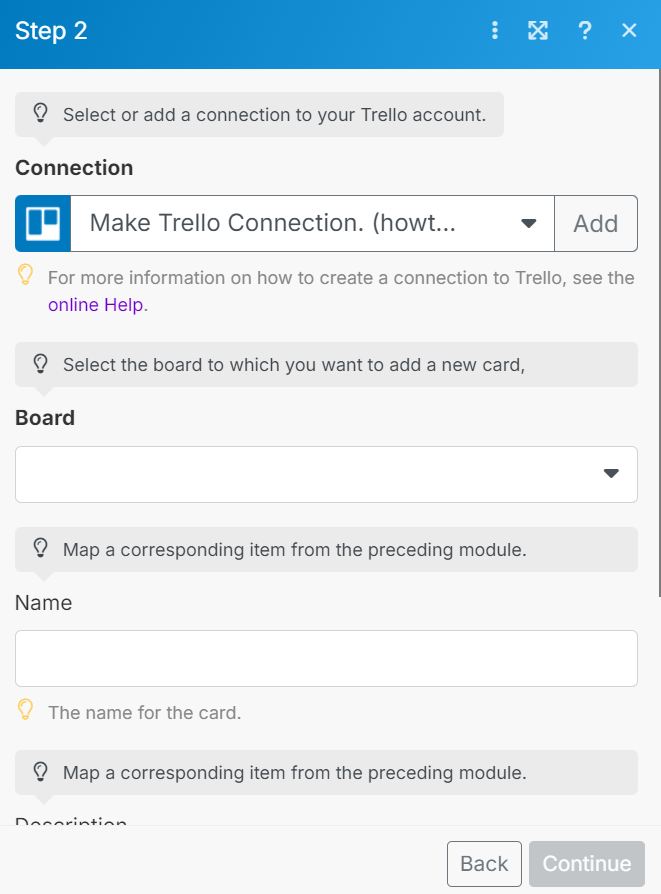
Choose your board’s name under “board”.
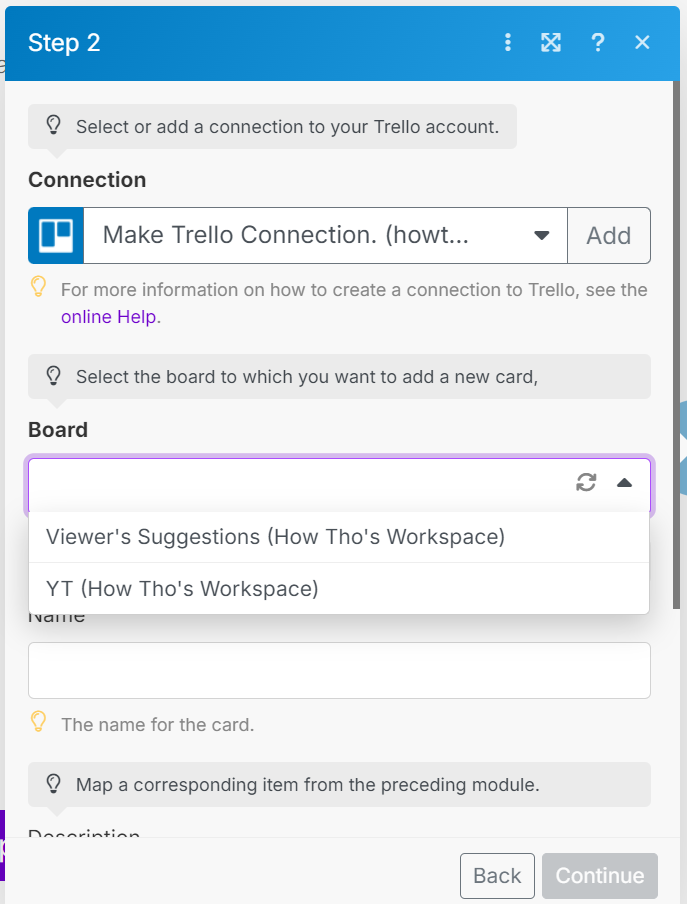
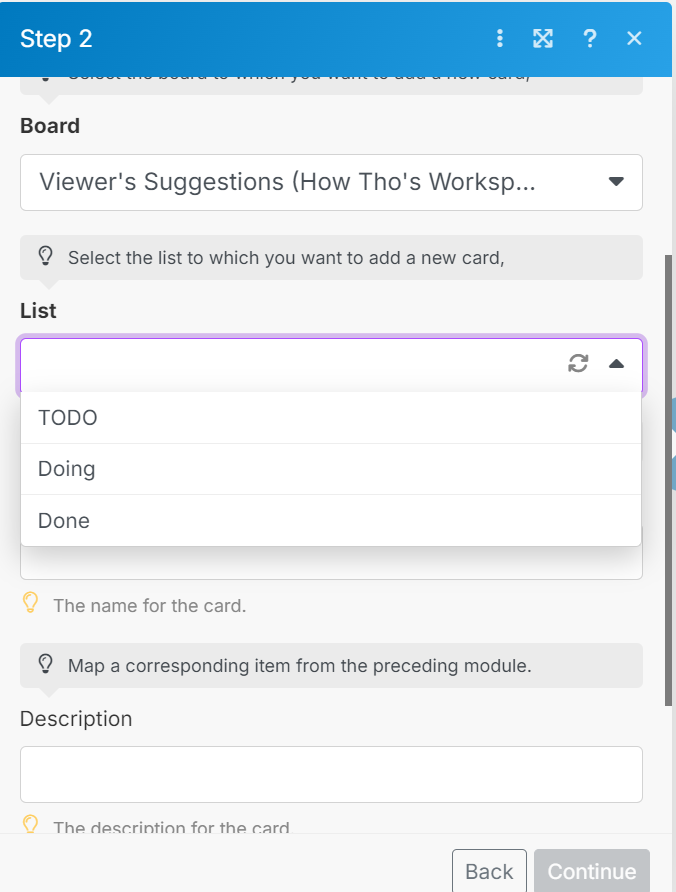
This will add a new “List” option, displaying all the lists on your board. Select the one you prefer. I’ll be choosing “TODO.”
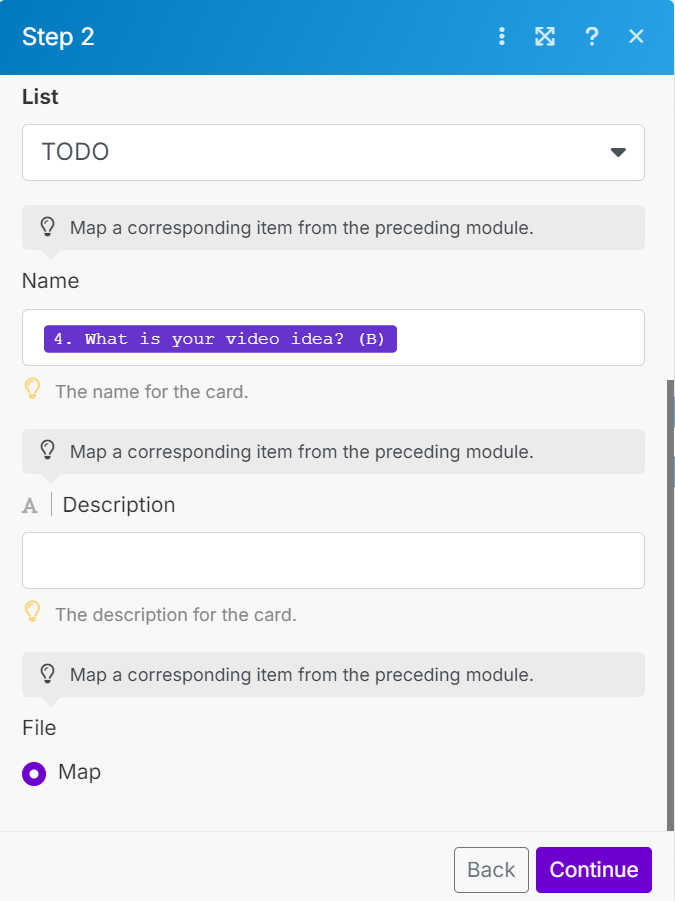
On to “Name”, when you click it you will see a new popup. Choose which value you want from the Google Sheet of your Google Form.
Congrats your almost done!
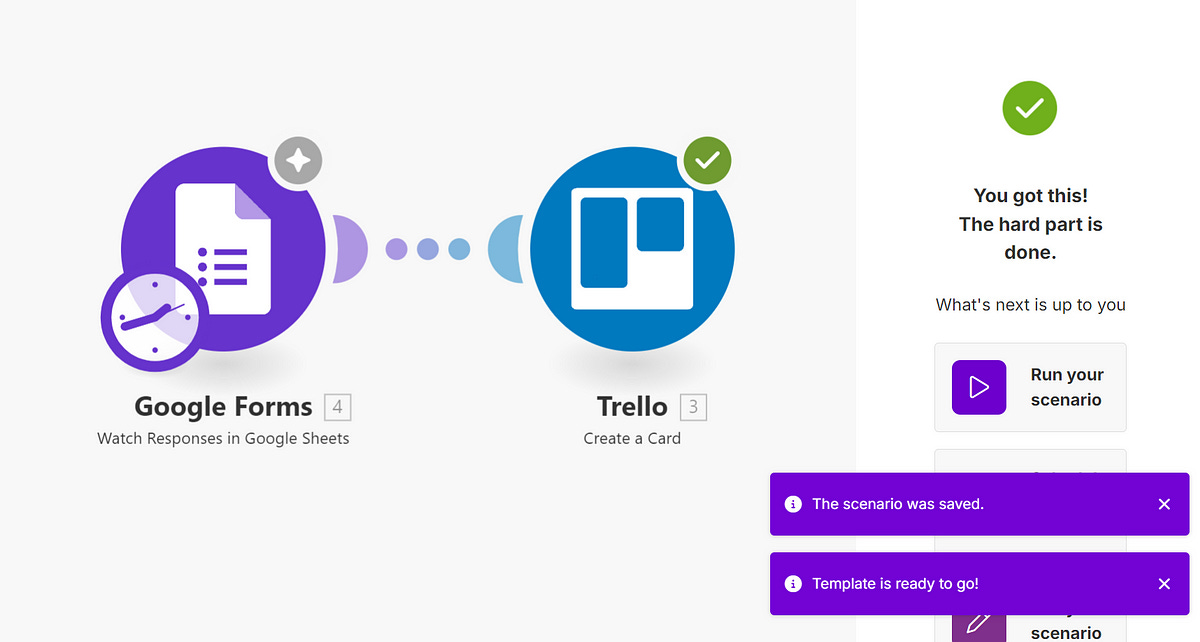
Click on “schedule your scenario”.
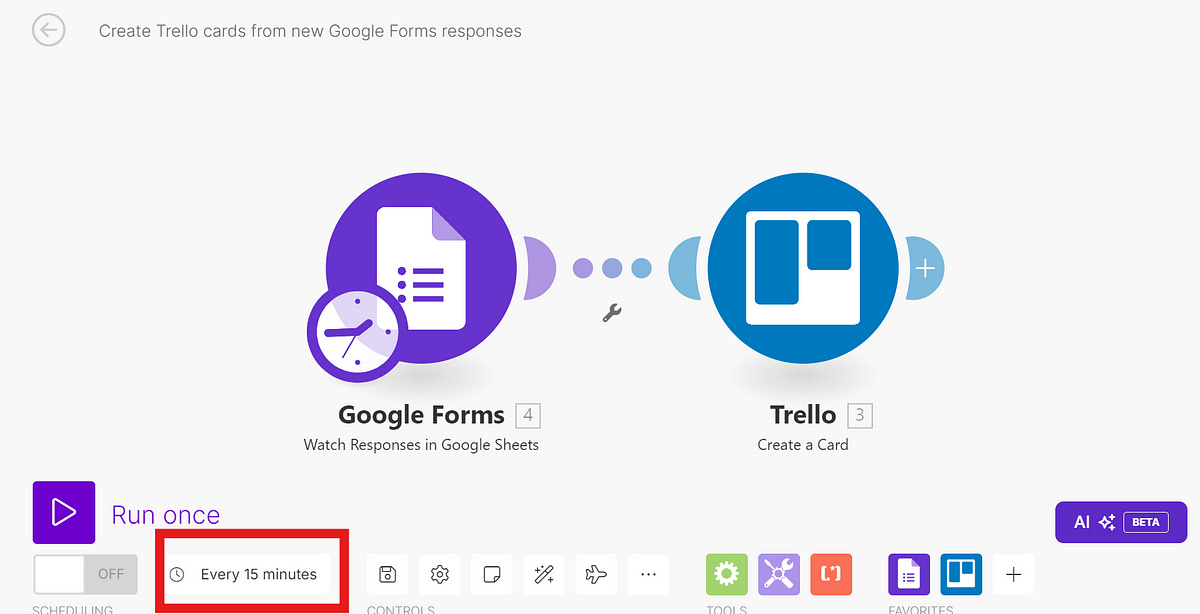
I would recommend you change the interval on when Make.com runs this scenario, otherwise you might use all your credits. You have a 1000 ops that you can use per month and this recharges each month.
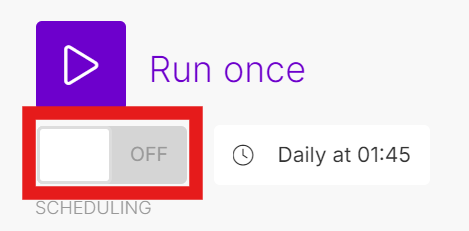
Change or keep the scheduling and then press on the “Off” button to turn it on.
And we are done! Please subscribe for more “How To” posts.
Disclaimer
I’ll earn a small commission when you click the link for Make.com and sign up.